How Do I Change the Grade Mode for a Class?
A grade mode change can be done through your Student Center as long as the change is being done before census. Please refer to the Academic Calendar for when census is. If you wish to change your grade mode but it is past the deadline to do online, you can fill out a Petition for Waiver of University Regulations. Please note that some courses do not have the option to change the grade mode. You can check the class description, or you can check the Course Catalog.
To change your grade mode online, please refer to the instructions below.
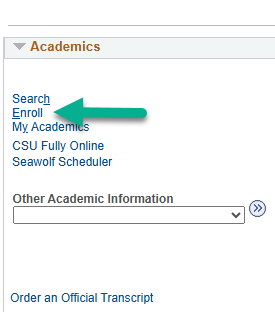
1. In your Student Center, under Academics, select Enroll.
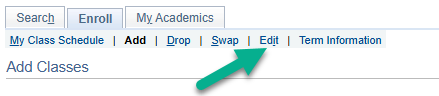
2. Select Edit.
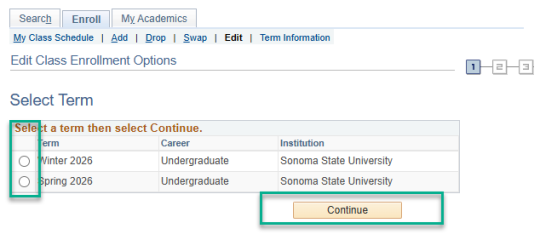
3. Select the semester in which you are registered for the course. Then click the button titled Continue.
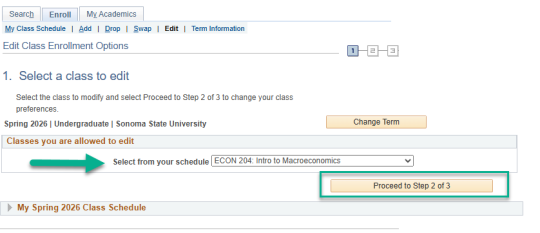
4. Select the course you want to edit, then click the button Proceed to Step 2 of 3.
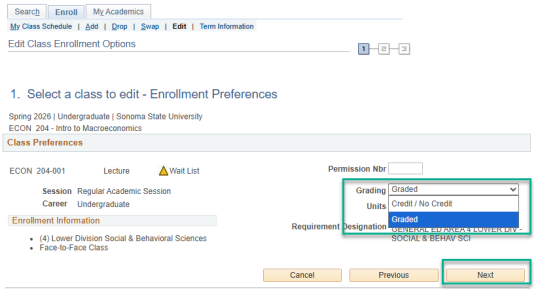
5. Click the drop-down menu titled Grading and select the grading mode you want to change the class to. Then, click the Next button.
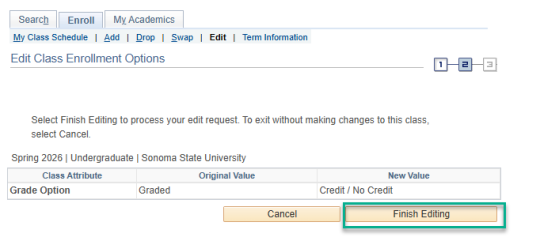
6. Review the update and then click the Finish Editing button.
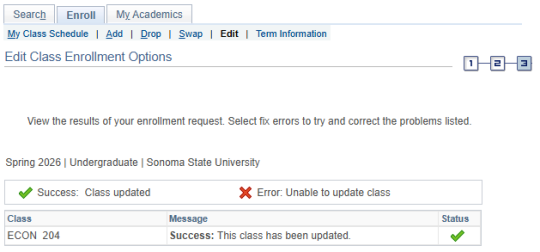
7. If the course has been updated, a check mark will appear under Status