

Add Classes
Enrollment Instructions: How to Add a Class
Once you log into your MySSU Portal, and, if it is your enrollment date and time (or open registration), you may begin adding classes. Please check for any holds that may prevent you from registering.
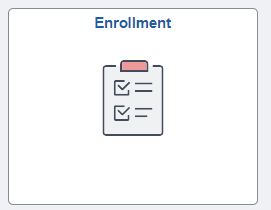
From your MySSU portal, select the Enrollment tile.
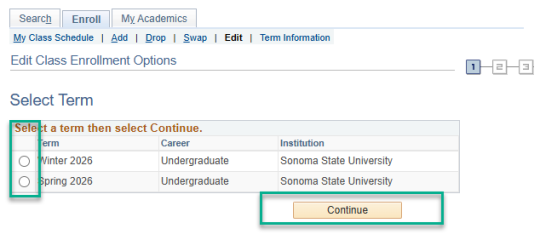
Select the term you wish to add a class, then click Continue.
Adding a course into your shopping cart
From here, you are directed to your Shopping Cart. You can either enter the 4-digit class number or search for a class if you do not know the 4-digit class number.
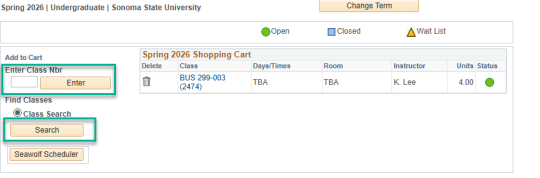
Once you enter the 4-digit class code or once you select a class through the search, you will be directed to this page.
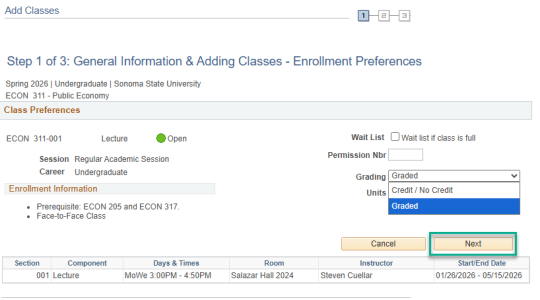
- If the class is wait listed, be sure to click the box titled Wait List.
- If this course offers a grading option, you can select if you want the course to be taken for a grade or for credit/no credit. Please note — it defaults to graded.
Once you have reviewed the course and made any necessary changes, click Next.
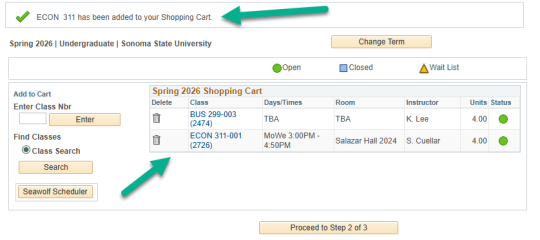
At this step, the class should now be in your shopping cart as seen below.
Finalizing Enrollment
Having courses in your shopping cart does not mean you have registered for the courses.
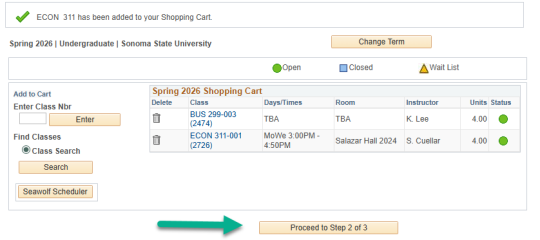
Once you have your courses in your shopping cart, click Proceed to Step 2 of 3
Confirm all the courses. Select Previous if you need to make any changes. Select Finish Enrolling to register for the courses.
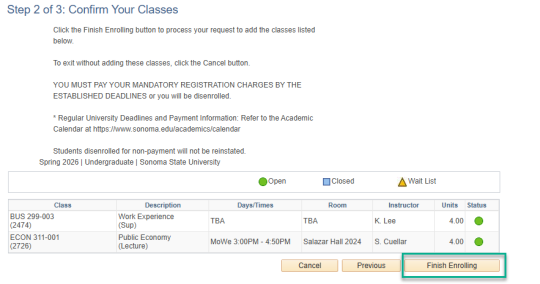
FINAL NOTE: Remember, if you see classes listed in your Shopping Cart, they have NOT been registered. You can click on the Trash Can to delete them, or Proceed to Confirm and Enroll. Please check on "My Class Schedule" to confirm you have successfully registered.